Accessing Your Account
Accessing Your Account
- Visit your iTiLive “Log In” page.
- Enter your Access Code and click Log In
Note: If you don’t know your Access Code, please contact your account administrator.
- If this is the first time your computer is accessing iTi Live, the site will ask for your permission to access your microphone and camera. Click Allow.
Home Page Overview
Home Page Overview
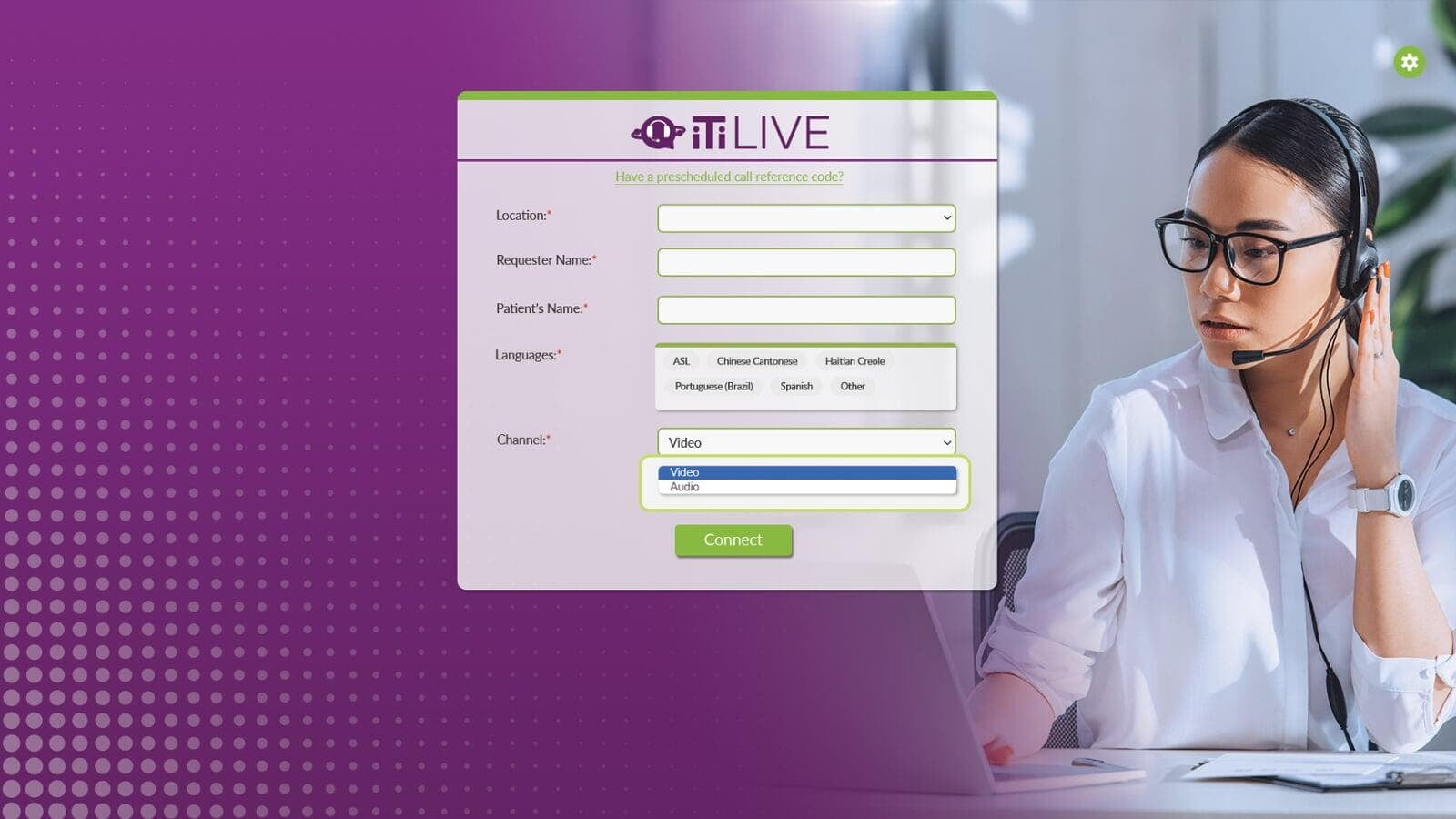
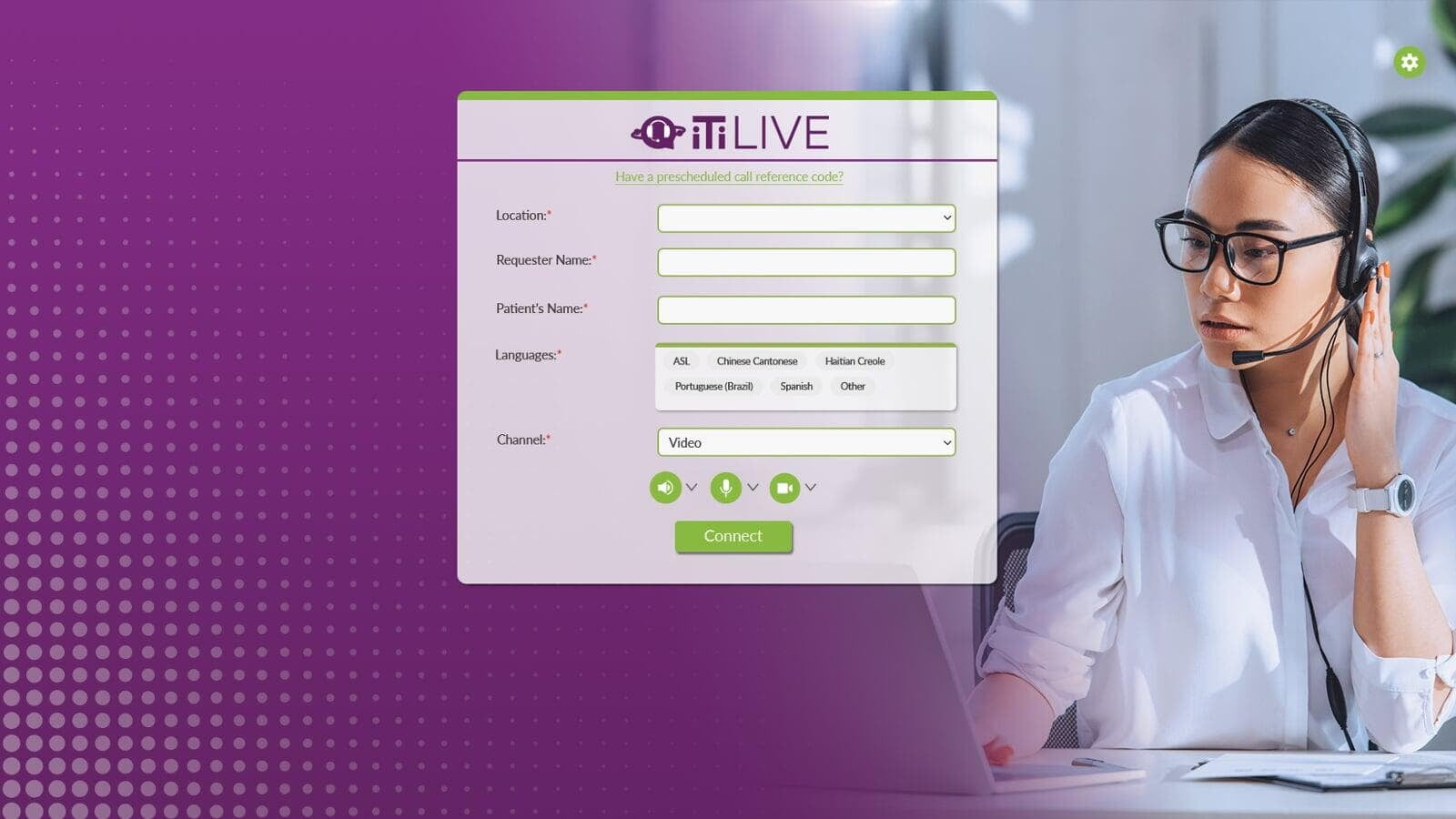
Once logged in, your “Home” screen (sometimes referred to as the “Billing” screen) will display the following fields: Organizational Information, Languages, Channel, and Schedule.
Organizational Information
Organizational Information
Between 1 and 5 fields at the top of the screen will be set by your organization. This information is customized per organization and may not match the example shown.
Languages
Languages
The Languages field allows you to choose the language for which you need an interpreter.
The five language titles listed in the box are set by your VRI administrator.
Other Languages
Other Languages
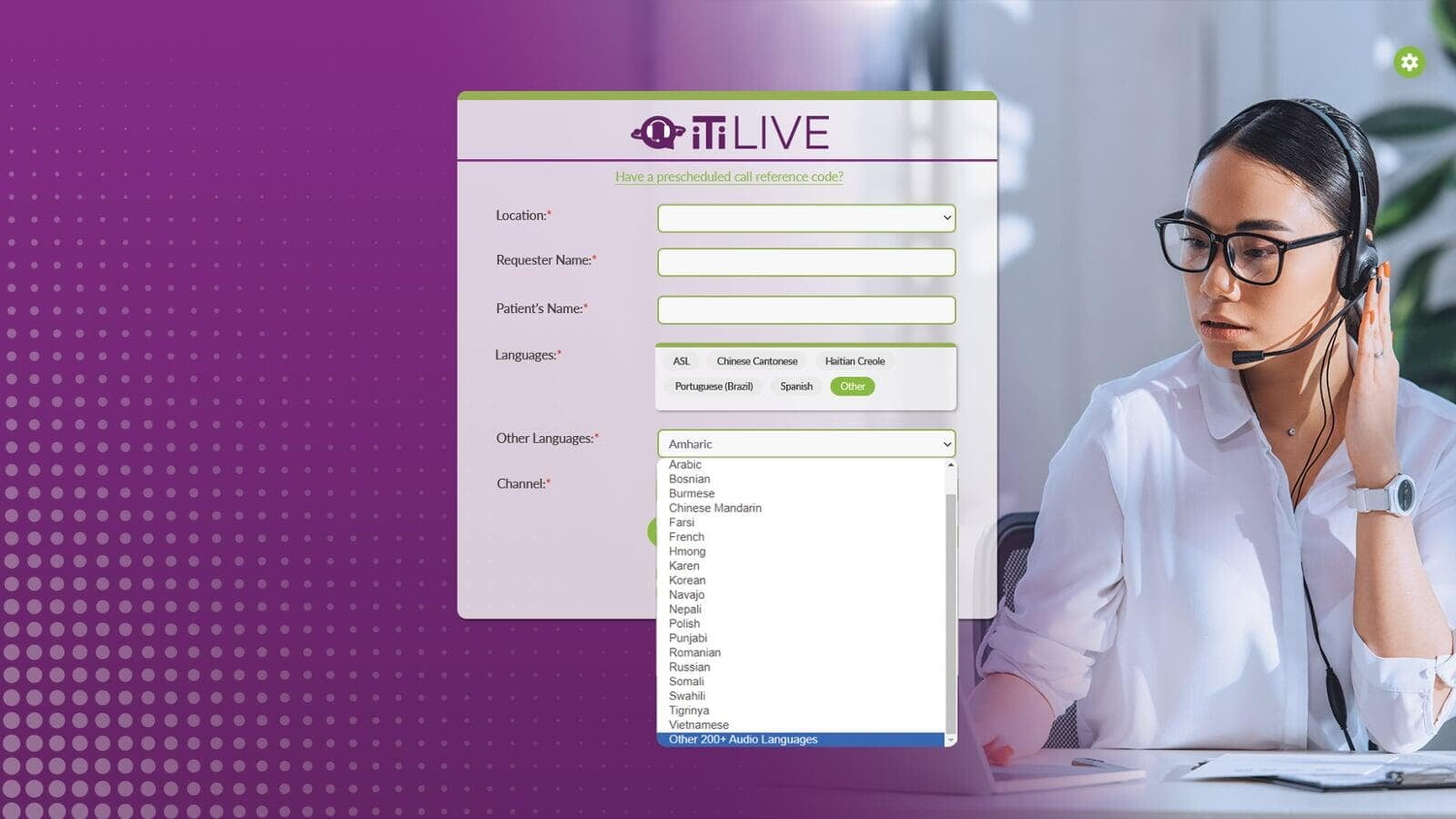
If your language is not listed as a tile, selecting Other will reveal the “Other Languages” dropdown. The “Other Languages” dropdown lists all the languages available for video.
Note: The Other 200+ Languages are only available over audio.
Channel
Channel
Choose between a Video or Audio Call under Channel.